
How to extract text from a PDF on your phone
Short answer
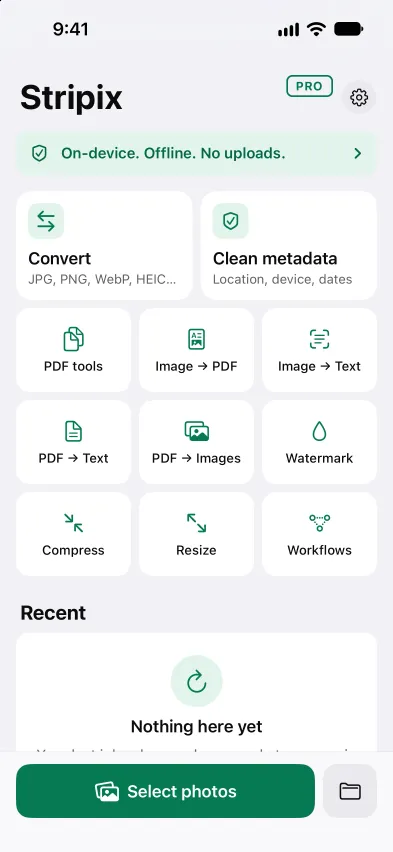
Open Stripix, tap PDF → Text, choose the PDF and tap Extract text. Pages with text are read as they are, scanned pages are recognized on your phone, and you tap Copy all or Save .txt. PDF to text shows the tool at a glance.
With Stripix
Some PDFs hold real text. Others are scans, which are only pictures of pages. Stripix handles both in one pass and tells you which pages are scans. On iPad and Mac it works the same, from the sidebar.
Step 1: Open PDF → Text and choose the PDF
Open Stripix and tap PDF → Text on Home. Tap Choose PDFs and pick the file in Files. A PDF with a password shows Locked · tap to enter the password.
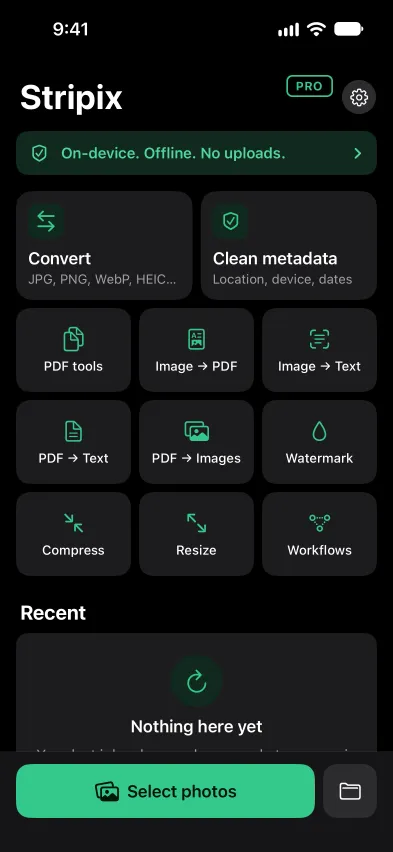
Home. PDF → Text sits with the other tools.
Step 2: Check the pages and options
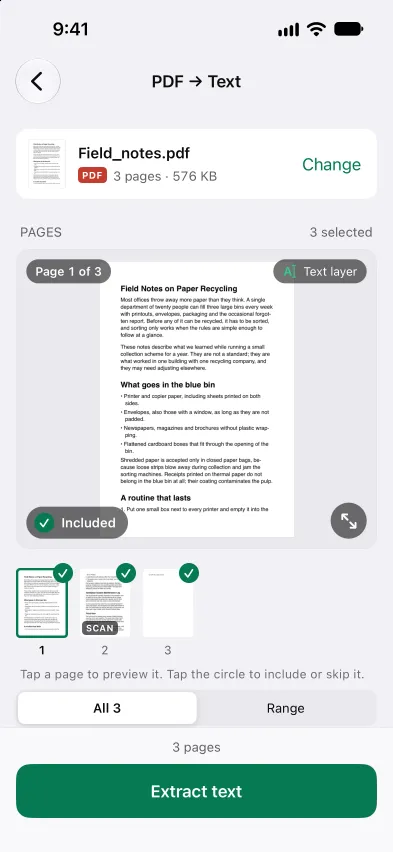
Stripix shows how many pages are scans, like 2 of 4 pages are scans. With Recognize text (OCR) on, scanned pages are recognized on your phone. A PDF that already has text says This PDF already contains text, and no OCR is needed.
Page separators puts a “— Page 3 —” line before each page, which helps in a long PDF. Turn it off for one continuous text.
A PDF with its scanned pages counted. Page separators is on.
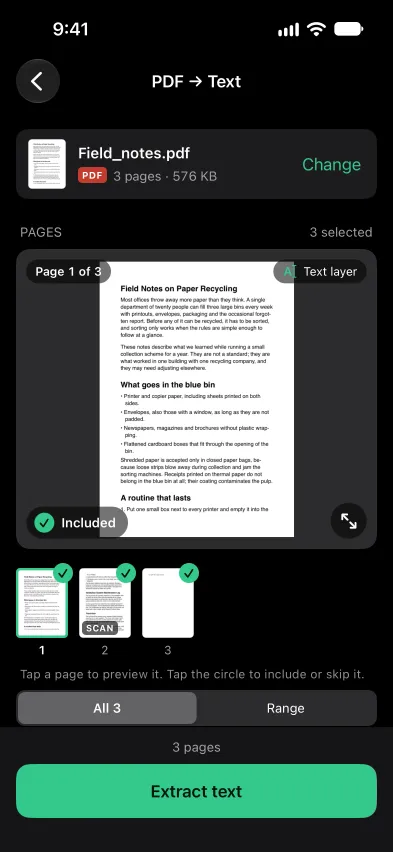
Step 3: Extract, then copy or save
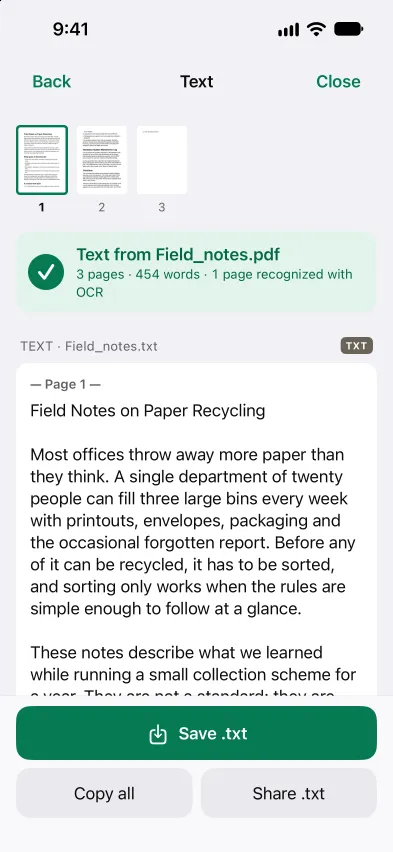
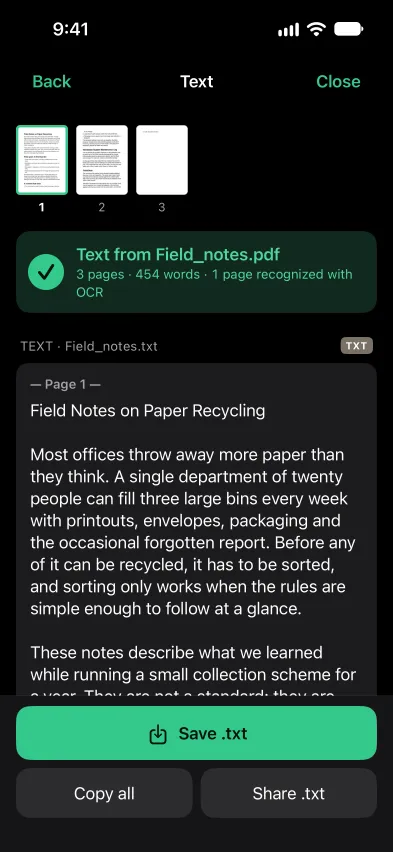
Tap Extract text. Pages with text are quick and scanned pages take a few seconds each, so the screen stays on until it finishes. The results screen shows the text, its word count and how many pages were recognized with OCR. Tap Copy all, Save .txt or Share .txt.
The extracted text, ready to copy or save.
Step 4: On Android
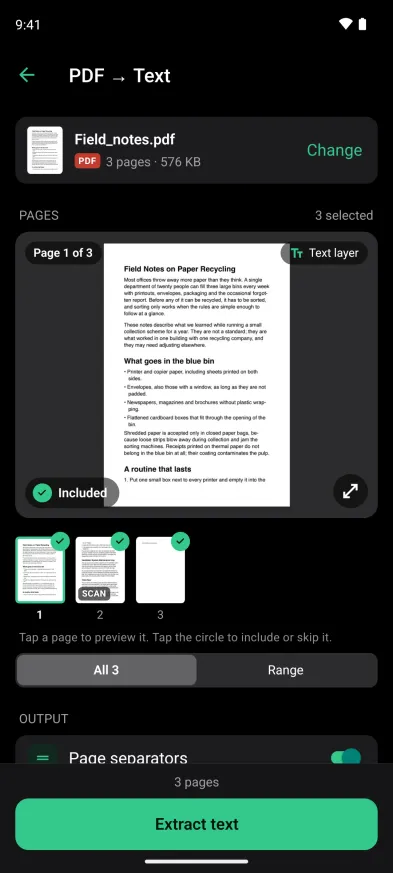
The steps are the same on Android. Open PDF → Text, choose the PDF and tap Extract text.
PDF → Text on Android.


Good to know
- Long PDFs are read in full. Every page goes into the .txt, in order.
- Scans take longer. Only scanned pages need recognition, so a PDF with mostly text finishes fast.
- Several PDFs need Pro. Free reads one PDF at a time. With Pro you can read many and get one .txt file or a .txt file each.
- The PDF stays as it is. PDF → Text gives you the words. To keep the PDF and make its scans searchable, see Make a PDF searchable.
- A photo is not a PDF. For a photo of a page, copy the text from the photo.
Questions
Is it free?
Yes, one PDF at a time. Reading several PDFs in one go is part of Pro.
Does it read scanned PDFs?
Yes. Turn on Recognize text (OCR) and Stripix recognizes the scanned pages on your phone. Pages that already hold text are read as they are.
Is a long PDF a problem?
No. Each PDF is read in full. Pages with text are quick, and scanned pages take a few seconds each, so a long scan takes longer. The screen stays on until it finishes.
What are Page separators?
A line like “— Page 3 —” before each page in the .txt. Turn Page separators off for one continuous text.
Is the PDF uploaded?
No. Stripix reads it on your phone, and it works offline.