
Make a PDF searchable on iPhone (OCR)
Short answer
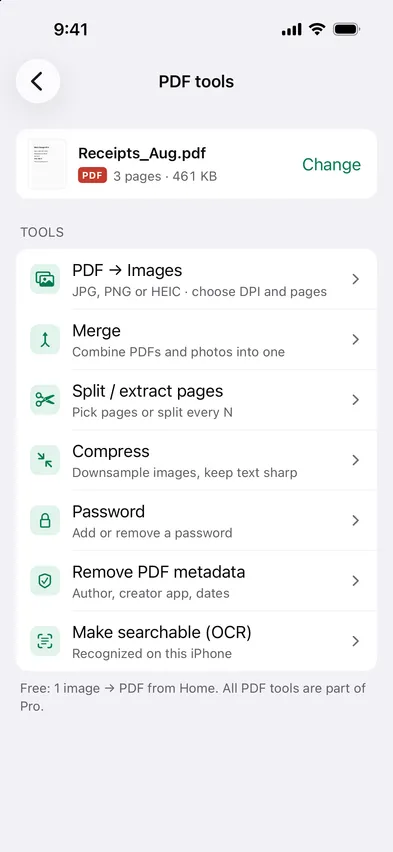
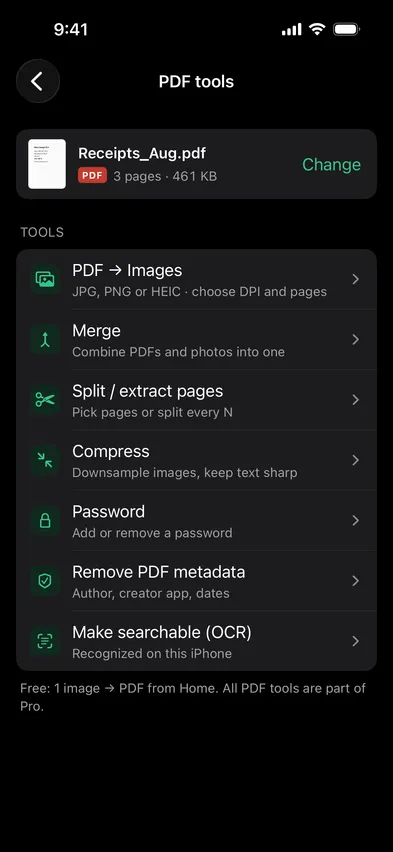
Open Stripix, tap PDF tools, choose your PDF and tap Make searchable (OCR). Stripix recognizes the text on your iPhone and adds it as an invisible layer. The PDF looks the same, and search finds its words. PDF tools shows every PDF tool at a glance.
With Stripix
1. Pick the PDF
Open Stripix, tap PDF tools, then Choose a PDF and pick it in Files. PDFs you opened before are listed on the same screen.


2. Tap Make searchable (OCR)
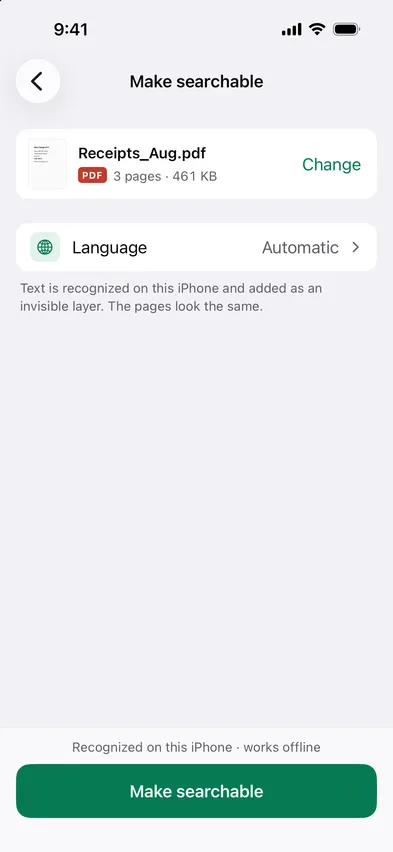
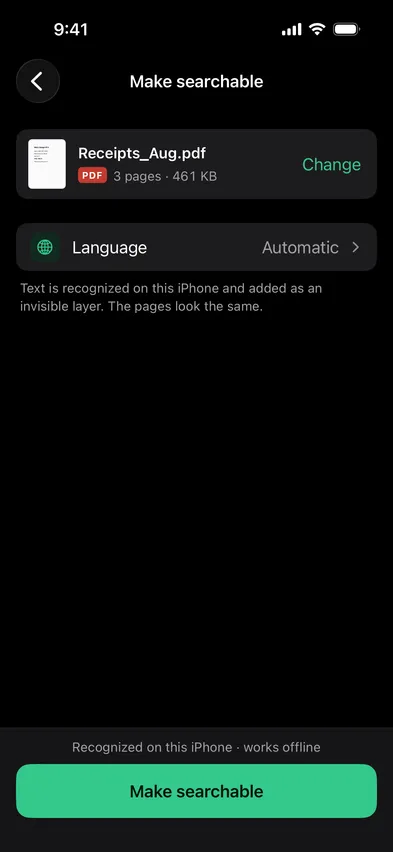
Language is set to Automatic, which suits most documents. If the whole PDF is in one language, you can pick it from the list. Tap Make searchable.
3. Check the recognized text and languages
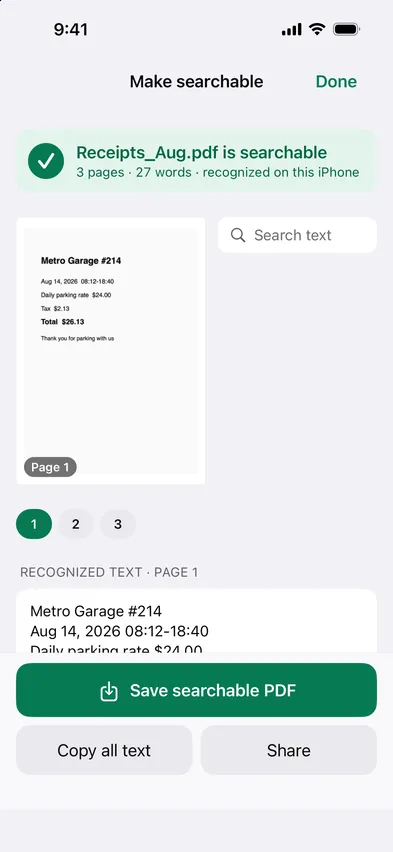
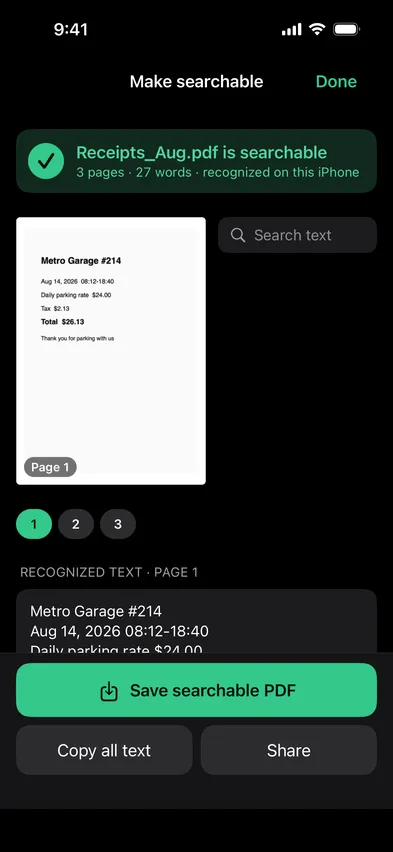
The results show how many pages and words were recognized. Type a word in Search text and the page numbers with matches light up. Recognized text shows what Stripix read on each page. If a page reads wrong, run it again with the document’s language picked instead of Automatic.
4. Save searchable PDF
Tap Save searchable PDF and choose where it goes in Files. Share sends it on and Copy all text puts the text on the clipboard. The new file’s name ends in “_searchable”. Your original PDF stays as it was.
What OCR does and doesn’t do
- It adds a text layer. Stripix reads the words in each page and adds them as invisible text.
- The PDF looks the same. Nothing on the page is redrawn or moved.
- Search finds it. Files, Spotlight and Mail search can find words in the PDF.
- It runs on your iPhone. Recognition works offline and nothing is uploaded.
- You pick the language, or not. Automatic works out the language. You can also set one yourself.
- It leaves existing text alone. Pages that already have text stay as they are.
- It doesn’t make the text editable. The layer is there for search and copying.
Make searchable (OCR) is part of Pro, like every tool in PDF tools.
Common cases
Receipts for expenses
Turn the month’s receipts into one PDF, as in Turn receipts into one PDF for an expense report, then make it searchable. Search for a shop name or an amount and go straight to the page it’s on.
A signed lease
A lease signed on paper and scanned is only pictures of pages. Once it’s searchable, Files search finds it by the landlord’s name or the address. The lease never goes to a server to get there.
Lecture scans
Scanned handouts become searchable by the terms in them. Copy all text gives you the text to paste into your notes.
Questions
Does it change how the PDF looks?
No. The text goes in as an invisible layer, so every page looks the same as before.
Can I copy the text?
Yes. Copy all text puts the text of every page on the clipboard, and you can select text on the results screen too.
Which languages does it read?
Language is set to Automatic. You can also pick one from the languages your iPhone recognizes, such as English, French, German, Spanish, Chinese, Japanese, Korean or Ukrainian.
Does it upload anything?
No. The text is recognized on your iPhone and it works offline. The PDF never leaves the device.