

Compress a photo to 200 KB on iPhone
On Android? Read the Android version
Short answer
Open Stripix, tap Compress, pick your photos and tap 200 KB. Stripix finds the quality and the size in pixels that land under the limit and shows the result before you compress. Compress to a size shows the tool at a glance.
With Stripix
A form that says “max 200 KB” doesn’t care how the photo gets there. Stripix aims for the number you set, one photo or a whole set at a time.
1. Open Compress and pick the photos
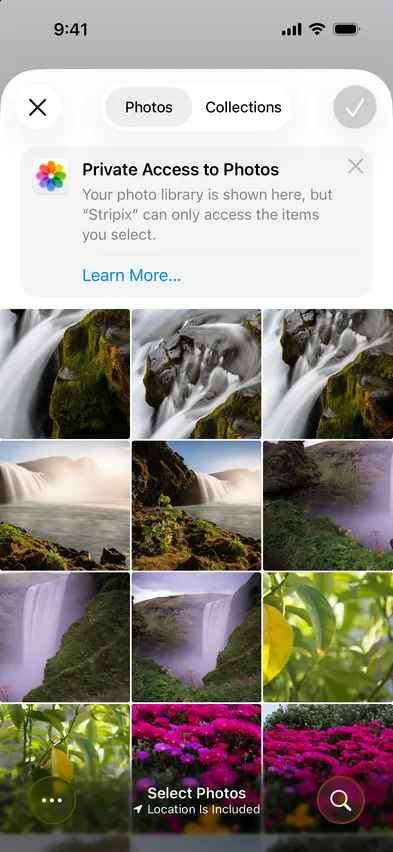
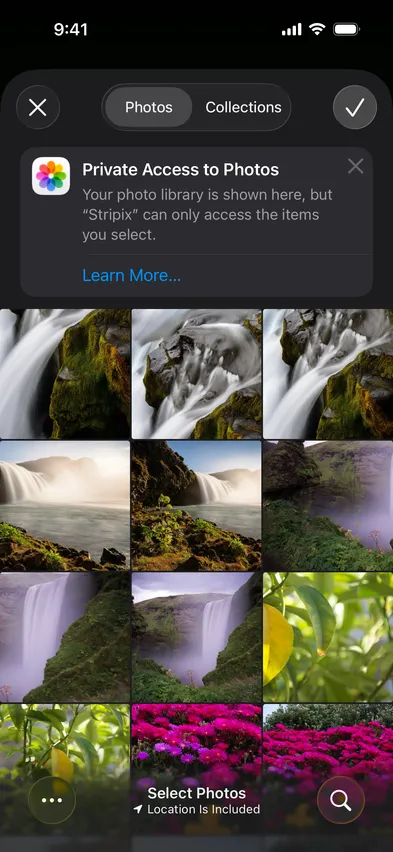
Open Stripix and tap Compress. The photo picker opens. Select one photo or all the ones the form needs and confirm with the checkmark. Stripix only gets the photos you select.


2. Set 200 KB
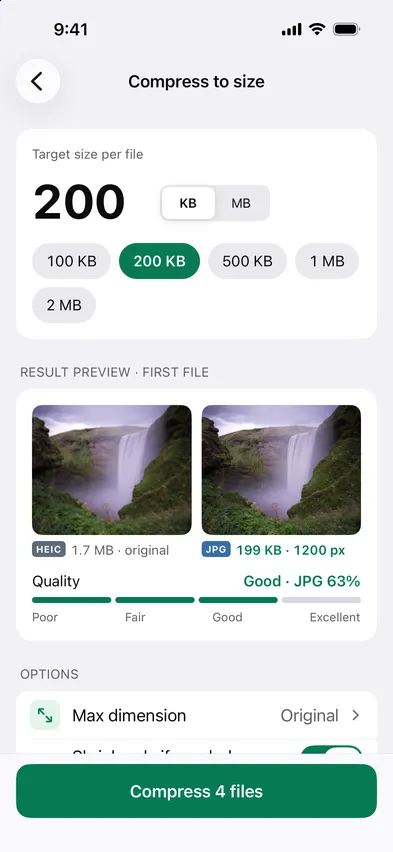
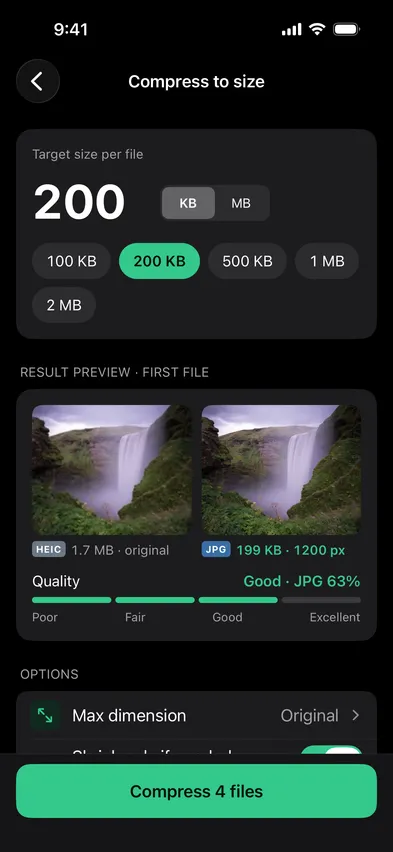
Tap 200 KB under Target size per file. For another limit, type the number and choose KB or MB. The target applies to each photo, so every file in the set lands under it.
If the form asks for JPG, tap Output format and choose JPG. By default Stripix keeps each photo’s own format, and iPhone photos are often HEIC.
3. Check the preview
Result preview shows the first photo before and after, with its size and Quality. A green line under the options confirms it fits, like First file fits under 200 KB after shrinking to 1200 px.
4. Compress and save
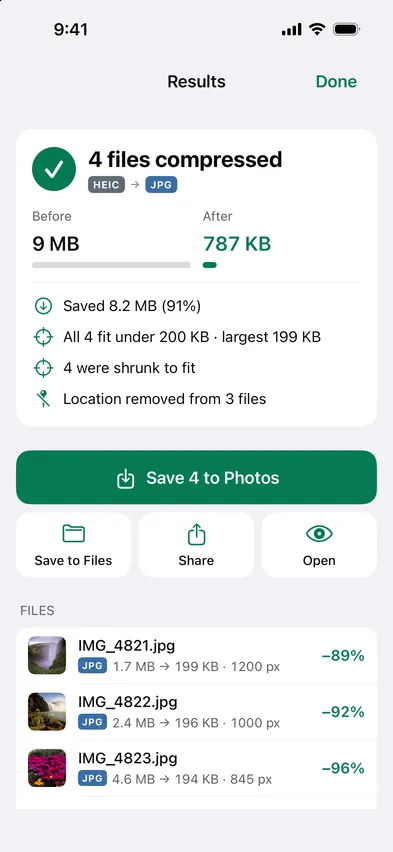
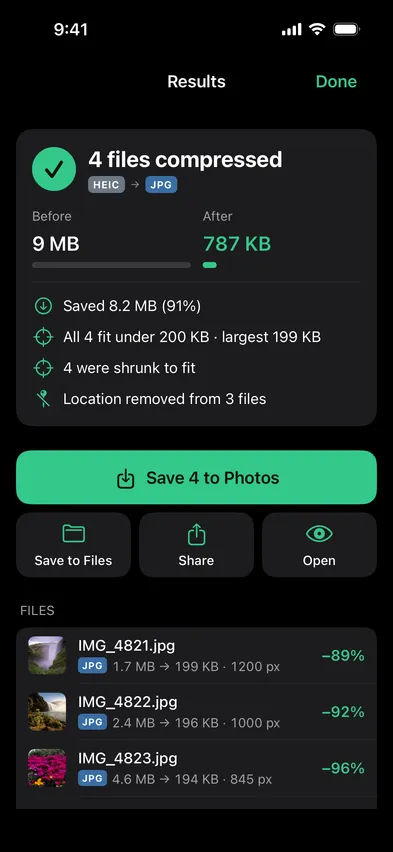
Tap Compress 4 files (the button counts your photos). Results show how much you saved and whether every photo made it, like All 4 fit under 200 KB. Save them to Photos, tap Save to Files, or Share them straight to the form. Your originals stay as they were.
Good to know: quality and size in pixels
- File size comes from two things. How many pixels the photo has, and how hard each one is compressed. A full-size iPhone photo has millions of pixels, far more than a form shows.
- Quality alone runs out. Lower quality means a smaller file, but below Good you start to see blocky patches and smeared edges. Stripix keeps quality at Good or better.
- Then Stripix shrinks the photo. When 200 KB can’t be reached at Good, it lowers the size in pixels until the photo fits. That’s what Shrink only if needed does, and it’s on by default.
- You can set the size yourself. If the form also asks for pixels, tap Max dimension and pick a limit for the long side, from 4096 px down to 1080 px.
- Location goes by default. Compress removes the location from each photo unless you change Metadata.
Common cases
A visa or passport portal
Portals often ask for a photo under a set size and in JPG. Set the target from the form, choose JPG under Output format, and upload the file from Photos or Files.
A job application form
Forms for a CV photo or scanned documents often cap each file. Set the limit once and compress the whole set in one go. Every file gets the same target.
An email attachment limit
Mail services cap how big a message can be, and a few full-size photos can go over. Set 1 MB or 2 MB per photo and send them with Share.
Questions
Why do forms ask for 200 KB?
Government portals, job boards and exam sites set hard upload limits. 200 KB, 500 KB and 1 MB are the common ones.
Will the photo look bad at 200 KB?
Not for a document photo or a portrait. Stripix keeps quality at Good or better and makes the photo smaller in pixels instead, so it stays sharp at the size a form shows it.
What if 200 KB can't be reached?
With Shrink only if needed off, Stripix warns you before you compress and offers a size in pixels that fits, or Shrink if needed. With it on, the photo gets smaller in pixels until it fits.
Is the compressed copy uploaded anywhere?
No. Stripix compresses on your iPhone. The original stays untouched in Photos.