

How to see all the metadata in a photo on Android
Short answer
To see all the metadata in a photo on Android, share it from Files to Stripix’s Clean metadata. The Privacy report counts what your photos carry, and tapping a photo shows every field: location, device, camera settings, dates, software and author. It’s all read on your phone. Remove location from photos shows the tool at a glance.
What a photo carries
The privacy report sorts a photo’s metadata into six kinds:
- Location: the latitude, longitude and altitude of the spot where you took it.
- Device model: the make, the model and the lens.
- Camera settings: ISO, shutter speed, aperture and focal length.
- Date and time: when the photo was taken, and when it was last changed.
- Software: the app that made or edited it, the color profile and the orientation.
- Author / copyright: a name or a copyright line, when one was set.
See it with Stripix
Step 1: Share the photos from Files
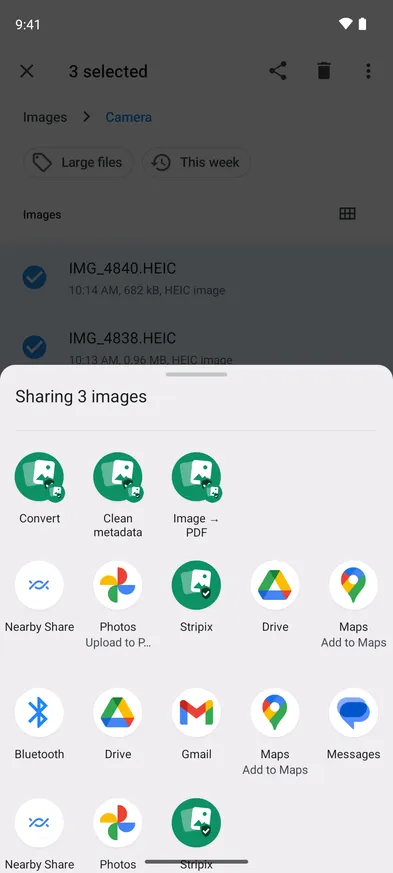
In Files, open the folder with your photos, like DCIM › Camera, and select them. Tap Share and pick Clean metadata under Stripix. Android chooses which of Stripix’s actions the menu shows. If Clean metadata isn’t there, pick Stripix.
The Share menu in Files, with Stripix’s Convert, Clean metadata and Image → PDF.


Step 2: Read the privacy report
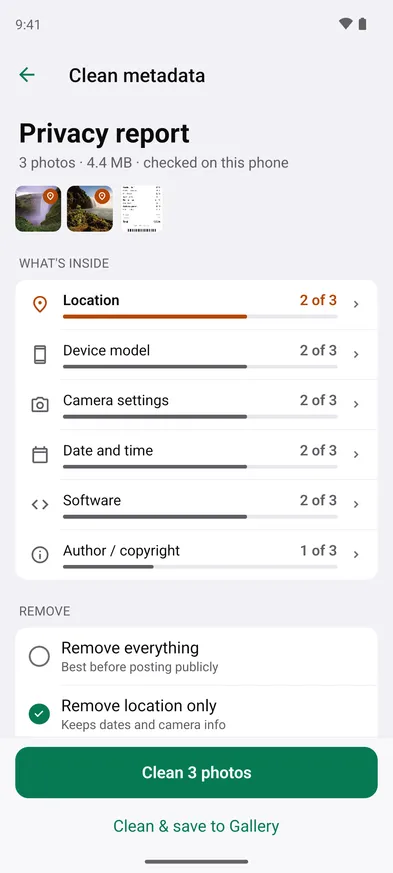
What’s inside lists each kind of metadata and how many of your photos carry it, like Location 2 of 3. A pin on a thumbnail marks a photo with a location.
The privacy report for three photos. Two carry a location, the screenshot doesn’t.
Step 3: Open one photo
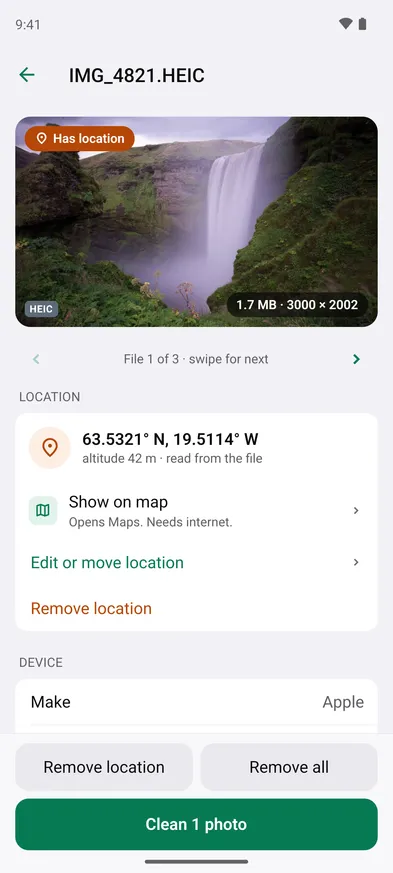
Tap a thumbnail. You see the location with its coordinates, then the device and lens, the camera settings, the dates, the software and the author. All 11 fields at the bottom lists every tag (the number is the photo’s own). Swipe for the next photo.
One photo’s location, read from the file.
Step 4: Remove what you don’t want to share
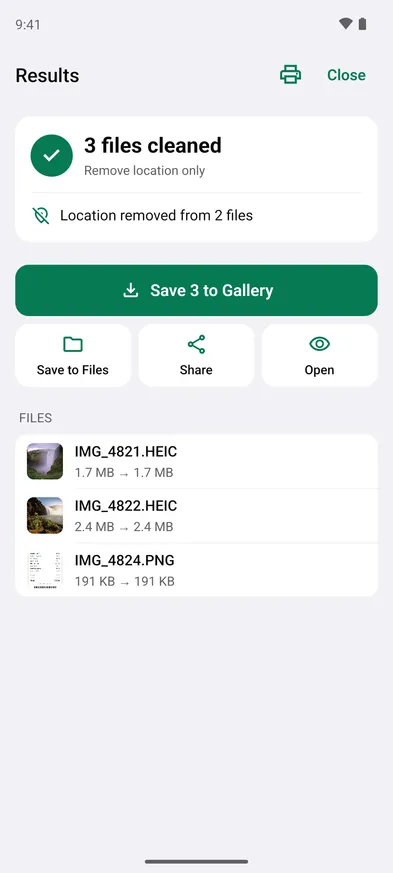
Back in the report, choose Remove location only, Remove everything or Custom, and tap Clean 3 photos. Save the clean copies with Save 3 to Gallery, Save to Files or Share.
Location removed from 2 of the 3 photos.
Good to know on Android
- Read on your phone. The report says checked on this phone. No photo and no coordinate leaves it.
- Not every photo carries everything. In the example, the screenshot has no location and no camera settings. A photo from the camera usually has the first five, and an author only when someone set one.
- The originals keep their metadata. Stripix saves clean copies in a Stripix album. The photo in Camera keeps its location unless you delete it, so send the copy.
- Selling something? Remove location from photos before selling on Marketplace walks through a listing.
- Sending through an app? Does Android remove location from photos when you share them? explains which apps keep it.
- Free and Pro. Removing the location from one photo is free. Batches, Remove everything and Custom are part of Pro.
Questions
Does looking at the metadata change the photo?
No. Stripix reads a copy, and nothing changes until you tap Clean 3 photos (the button counts your photos).
Which kinds of metadata does Stripix read?
EXIF, where cameras store settings, dates and the location, plus XMP and IPTC fields such as author and copyright.
Does the map need internet?
Yes. Show on map opens Maps, which needs internet. The coordinates themselves are read on your phone.
Is anything uploaded?
No. The privacy report says checked on this phone, and that's where it stays.