

How to convert HEIC to JPG on Mac
Short answer
Your Mac can turn a HEIC into a JPG with Preview or a Finder Quick Action. For a batch, a choice of metadata or a size limit, open Stripix, click Convert, add your HEIC files and choose JPG. HEIC to JPG shows the tool at a glance.
The built-in way
Your Mac already converts HEIC to JPG. Preview exports a file as JPG, and Finder has a Convert Image Quick Action for files you select. That’s fine for one or two photos. Neither lets you choose which metadata stays, set a target size, or keep a long folder going without repeating the same steps.
With Stripix on Mac
Stripix on Mac is the same app as on iPhone, with the same tools in a sidebar. Photos are converted on your Mac. Nothing is uploaded.
Step 1: Open Convert and add the files
Open Stripix and choose Convert in the sidebar. Add your HEIC files from Finder. Free converts one photo at a time. With Pro, a whole folder converts at once.
Convert in the Mac window: the files, the output format and the Convert button.
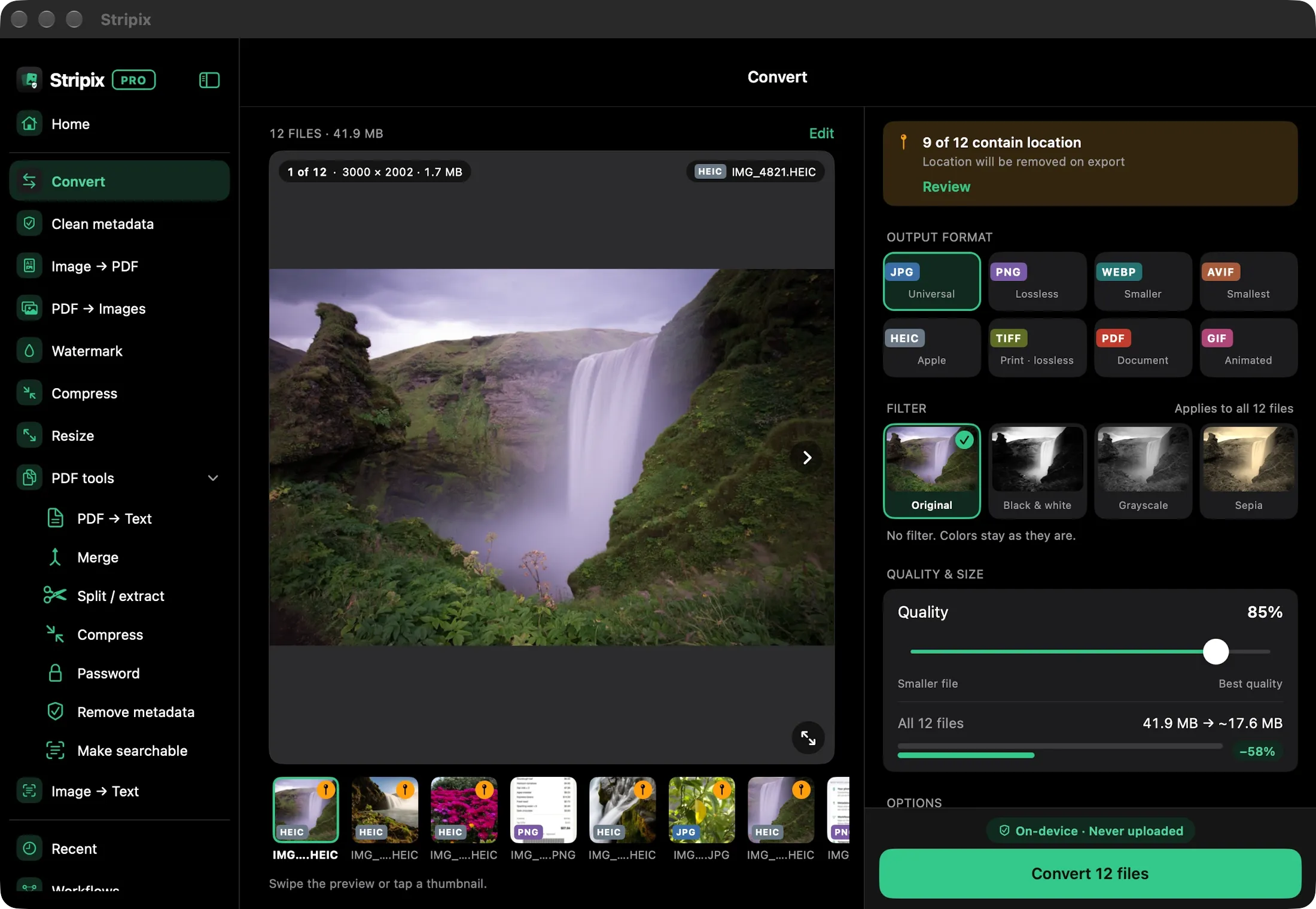
Step 2: Choose JPG and the quality
Choose JPG under Output format. JPG at 85% is the default, and you see the size before you start.
Step 3: Pick what metadata stays
By default only the GPS location is removed. Date and camera stay. Change Metadata to keep everything or remove all of it. Do photos show where they were taken? shows what a photo carries.
Step 4: Convert and save
Click Convert (the button counts your photos). On Results, Save to Photos puts the JPGs in the Stripix album, or Save to Files lets you pick a folder. Your HEIC originals stay as they were.
When to use Stripix on Mac
- Batches. A whole folder converts in one go, with Pro.
- Metadata. You decide whether location, date and camera info stay.
- Size. If a form wants a limit, compress a photo to 200 KB with the same app.
Questions
Is Stripix on Mac free?
Converting one photo at a time is free. Batches need Pro, and one App Store purchase covers iPhone, iPad and Mac.
Which Macs does it run on?
Macs with Apple silicon, from the App Store.
Does it keep my location?
By default only the GPS location is removed. Date and camera stay. You can keep everything or remove all of it.
Is anything uploaded?
No. Stripix converts on your Mac, and it works offline.