
Save one page of a PDF as an image on iPhone
Short answer
To save one page of a PDF as an image on iPhone, open Stripix, tap PDF tools, choose the PDF and tap PDF → Images. Switch to Range, type the page number, choose JPG and a resolution, then tap Export 1 page. The page lands in Photos as an image. Convert PDF to JPG shows the tool at a glance.
Save a PDF page as an image with Stripix
1. Pick the PDF
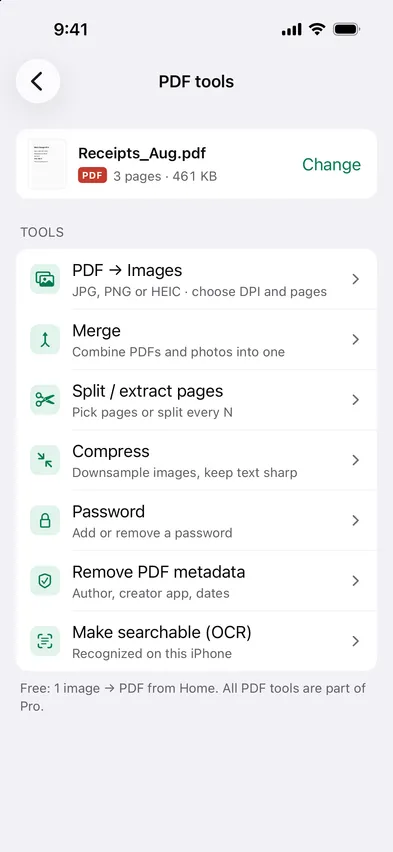
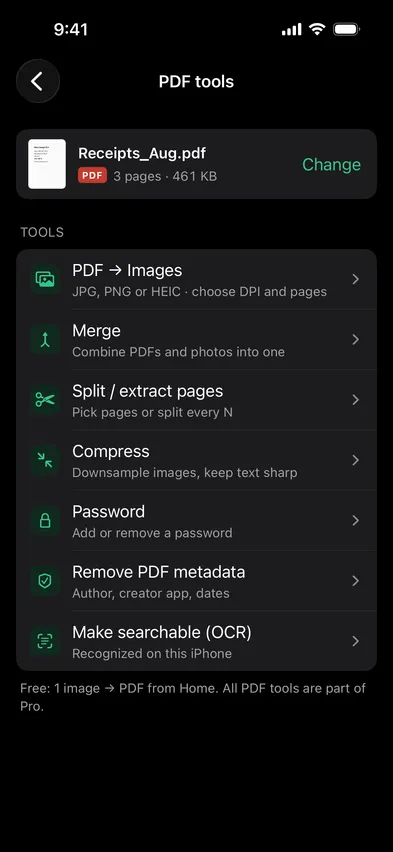
Open Stripix, tap PDF tools, then Choose a PDF and pick it in Files. Tap PDF → Images, the first tool in the list.


2. Choose the pages
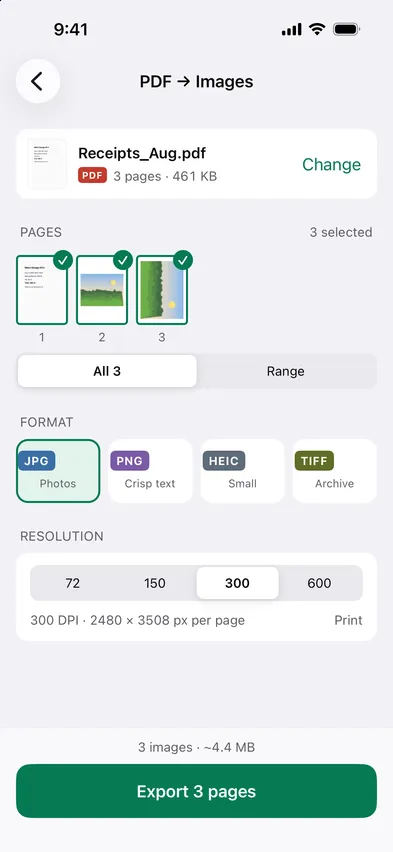
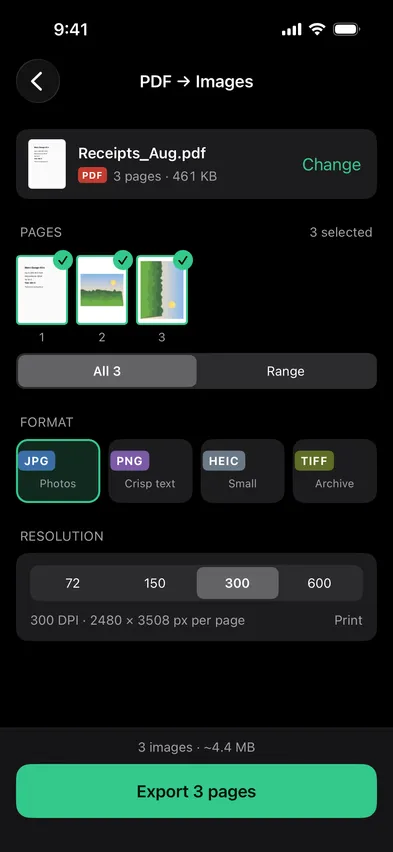
Every page is selected to start with. Tap a page to leave it out, or switch to Range and type pages like 1–3, 7, 12.
3. Choose format and resolution
Pick JPG, PNG, HEIC or TIFF, then a resolution: 72, 150, 300 or 600 DPI. Under the resolution you see the size of each image in pixels, and the bar at the bottom estimates the total.
4. Export
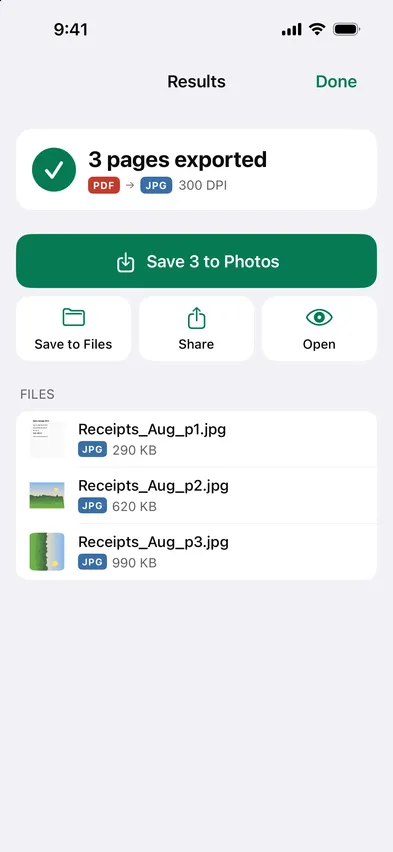
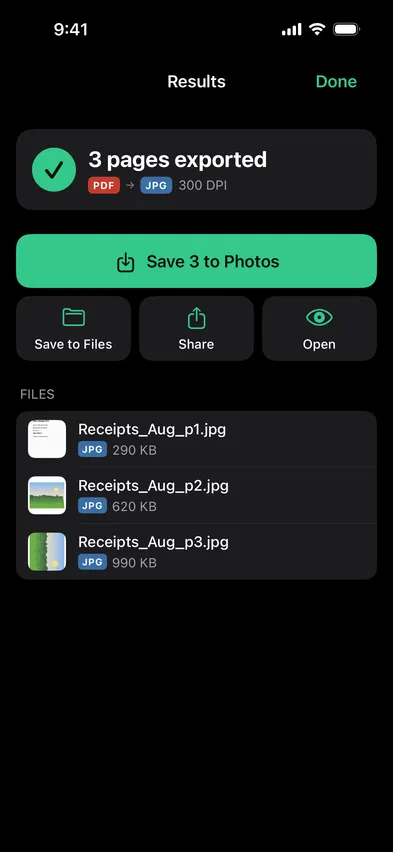
Tap the button at the bottom, like Export 3 pages. You get one image per page. Tap Save to Photos (it counts the images), or Save to Files if you’d rather keep them there. The PDF stays as it was.
Good to know: choosing DPI
DPI is how many pixels Stripix renders for every inch of the page. More DPI means sharper images and bigger files.
- 72 DPI · Screen. Fine for a quick look on a phone. Small text gets soft.
- 150 DPI · Documents. Readable text at a reasonable size, good for messages and email.
- 300 DPI · Print. About 2480 × 3508 px for an A4 page, sharp enough to print.
- 600 DPI · Archive. Four times the pixels of 300 DPI. Use it when you need fine detail later.
For pages that are mostly text or diagrams, PNG keeps edges crisp. For pages with photos, JPG is much smaller.
Common cases
One page to post or send
A flyer, a menu or a ticket often comes as a PDF. Pick that page, choose JPG at 150 DPI and share the image from Photos.
Slides as images
Export a deck at 150 DPI and every slide is an image you can drop into a message, a note or a presentation app.
A plan to print
Floor plans and diagrams need detail. Choose PNG at 300 DPI so lines and small labels stay sharp on paper.
Questions
Can I save several pages at once?
Yes. Tap the pages you need, or type a range like 1–3, 7. Each page becomes its own image.
How big is a page saved at 300 DPI?
About 2480 × 3508 px for an A4 page. Stripix shows the exact size under the resolution before you export.
Which format should I pick?
JPG for photos and sharing, PNG for crisp text and diagrams, HEIC for small files, TIFF for archiving.
Are my PDFs uploaded?
No. Every page is rendered on your iPhone, and the PDF stays on it.