Extract pages from a PDF on iPhone
Short answer
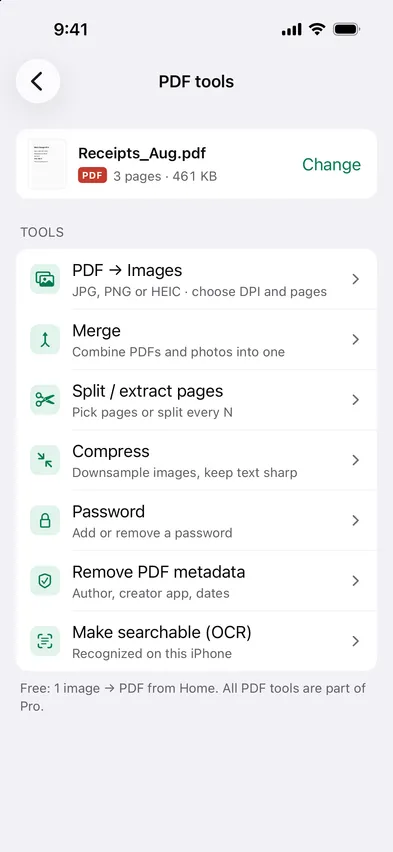
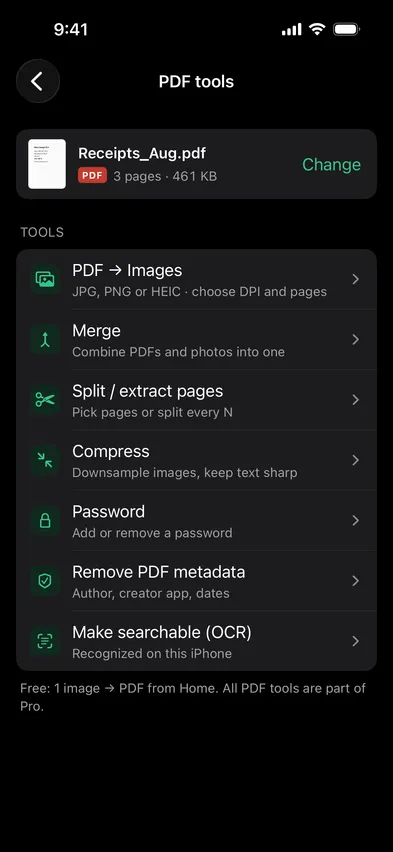
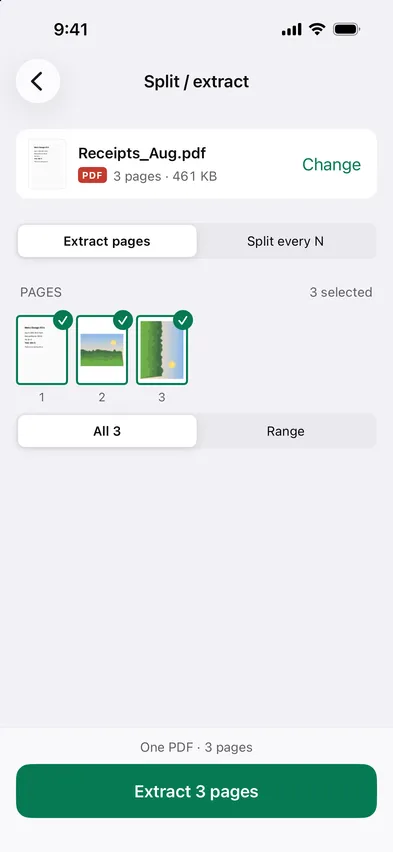
Open Stripix, tap PDF tools, choose the PDF and tap Split / extract pages. Tap the pages you want and tap Extract. They’re saved as a new PDF in Files. Extract pages from a PDF shows the tool at a glance.
With Stripix
1. Pick the PDF
Open Stripix, tap PDF tools, then Choose a PDF and pick it in Files. PDFs you opened before are listed on the same screen.


2. Tap Split / extract pages
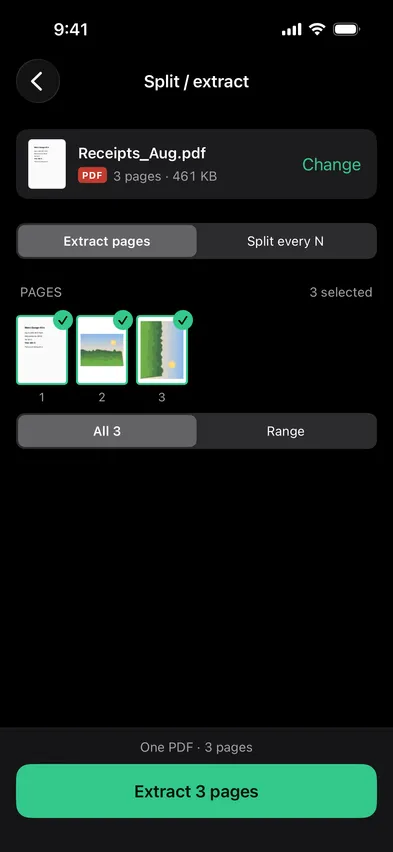
Tap Split / extract pages. It opens on Extract pages, with every page shown as a thumbnail.
3. Choose the pages
In Extract pages, tap the thumbnails to pick pages, or switch to Range and type pages like 1–3, 7, 12. In Split every N, set Pages per file instead, and Stripix cuts the whole PDF into parts of that size.
4. Save
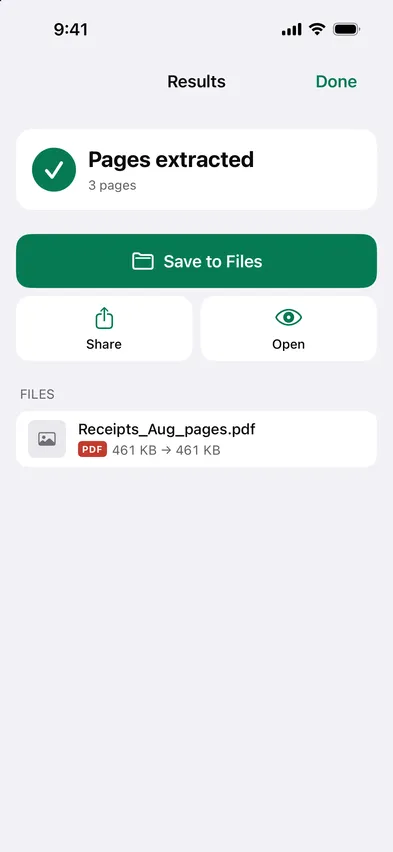
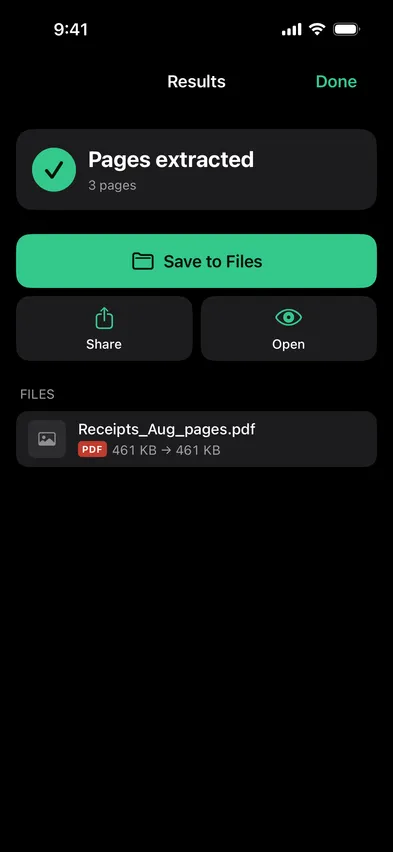
Tap the button at the bottom, which says what it will do, like Extract 3 pages or Split into 5 PDFs. Then tap Save to Files. The original PDF stays whole.
Good to know: ranges vs every N
The two modes answer different questions.
- Extract pages answers “which pages?”. The pages you pick, from anywhere in the file, become one new PDF.
- Range is the quick way to pick many. Type 1–3, 7, 12 instead of tapping each thumbnail.
- Split every N answers “how big should each part be?”. It cuts the PDF into equal parts and saves one PDF per part.
- The last part can be shorter. A 10-page PDF split every 3 pages gives parts of 3, 3, 3 and 1 page.
Common cases
One page of a contract
Someone needs page 12 of a 40-page contract. Tap that page, extract it, and send one page instead of the whole agreement.
A batch scan into separate forms
You scanned ten two-page forms in one go. Choose Split every N with 2 pages per file, and each form becomes its own PDF.
A chapter from a manual
Type the chapter’s pages as a range, like 45–62, and keep just that part on your phone.
Questions
Can I extract several ranges at once?
Yes. Tap any pages, or type ranges like 1–3, 7. They all go into one PDF.
Can I save pages as images instead?
Yes. PDF → Images turns each page into a JPG, PNG, HEIC or TIFF in Photos.
Is the original PDF changed?
No. The pages you pick are copied into a new PDF, and the original stays whole.
Is there a page limit?
No.